

monthly-update · bots · developer-api · integrations · ai-agents · mantle-ai · desktop-app
Mantle Chat Monthly Update: October 2026
By Mantle Chat Team · Nov 4, 2026 · 15 min read
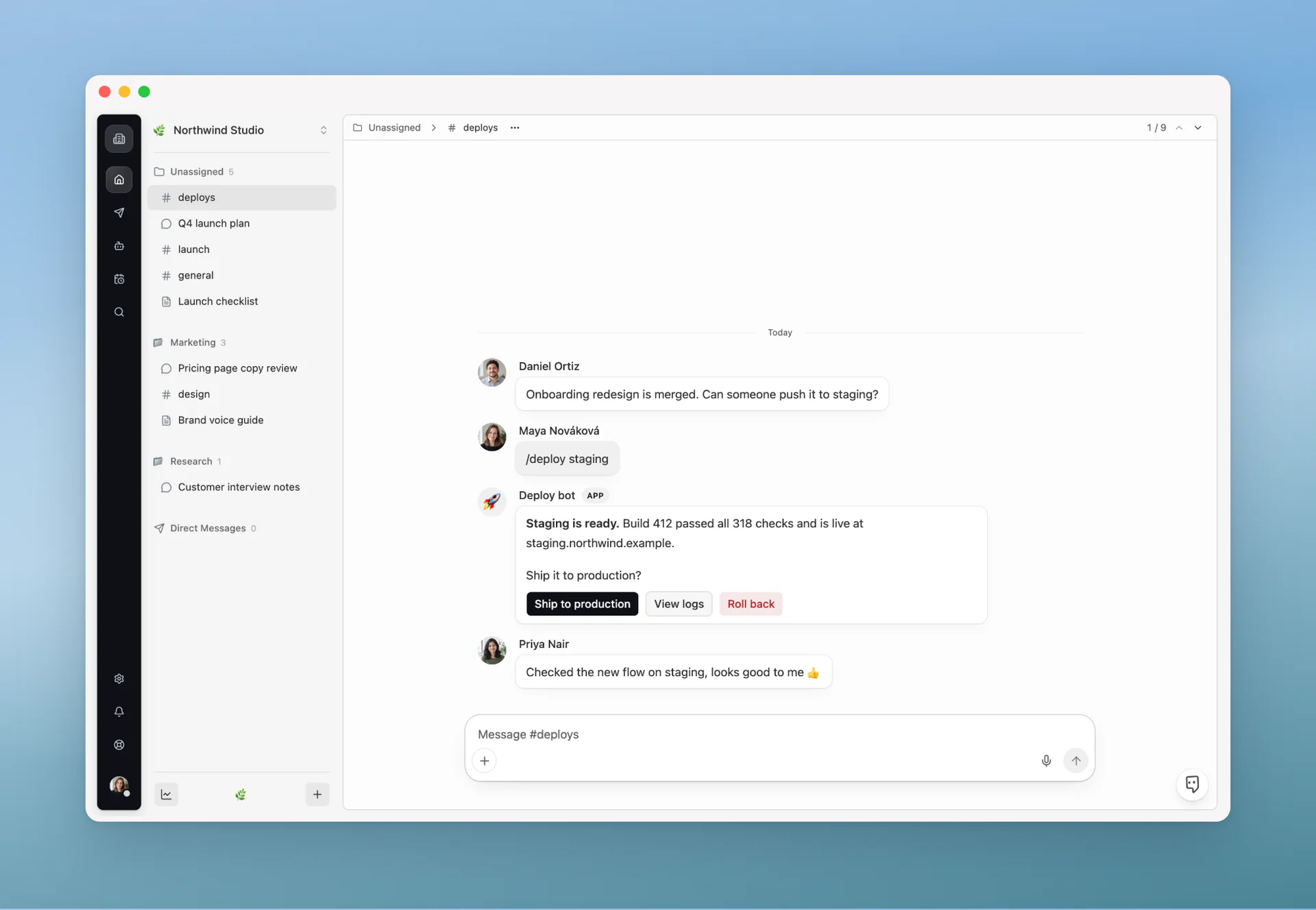
October was about letting more of your work reach Mantle Chat, and making it easier to see what arrives.
Your own tools can now post into channels as bots, external services can post through a webhook URL, and every source that posts into a channel is listed in one place. Agents and Tasks can connect to many more apps, and Agents now read their files in full when the files fit. The composer was redesigned, the new-chat screen became a small home you can arrange, and Mantle AI learned to show new people around.
This month we:
- Opened the Mantle Chat API and bots to every workspace, with a setup checklist, slash commands, buttons, a public API reference, and a TypeScript SDK on npm.
- Put everything that posts into a channel in one list, and added incoming webhooks with Slack- and GitHub-compatible formats.
- Made 194 integrations available to Agents and Tasks, with clearer Google permissions and connections that no longer pull you out of the Agent or Task you are building.
- Gave Agents the full text of their knowledge files when the files fit, with a marker that shows which files an answer used.
- Redesigned the composer and the new-chat screen, with one
+menu for files, images, search, and rewriting, and a chat home you can customize. - Added a guided tour to Mantle AI for people who are new to Mantle Chat.
- Gave local coding agents in Mantle Chat Desktop for Mac their own folder, access level, and change review in each chat.
- Added in-app feedback with screenshots, plus a round of fixes for deletions, sign-in, and checkout.
Here is where everything stood at the end of the month:
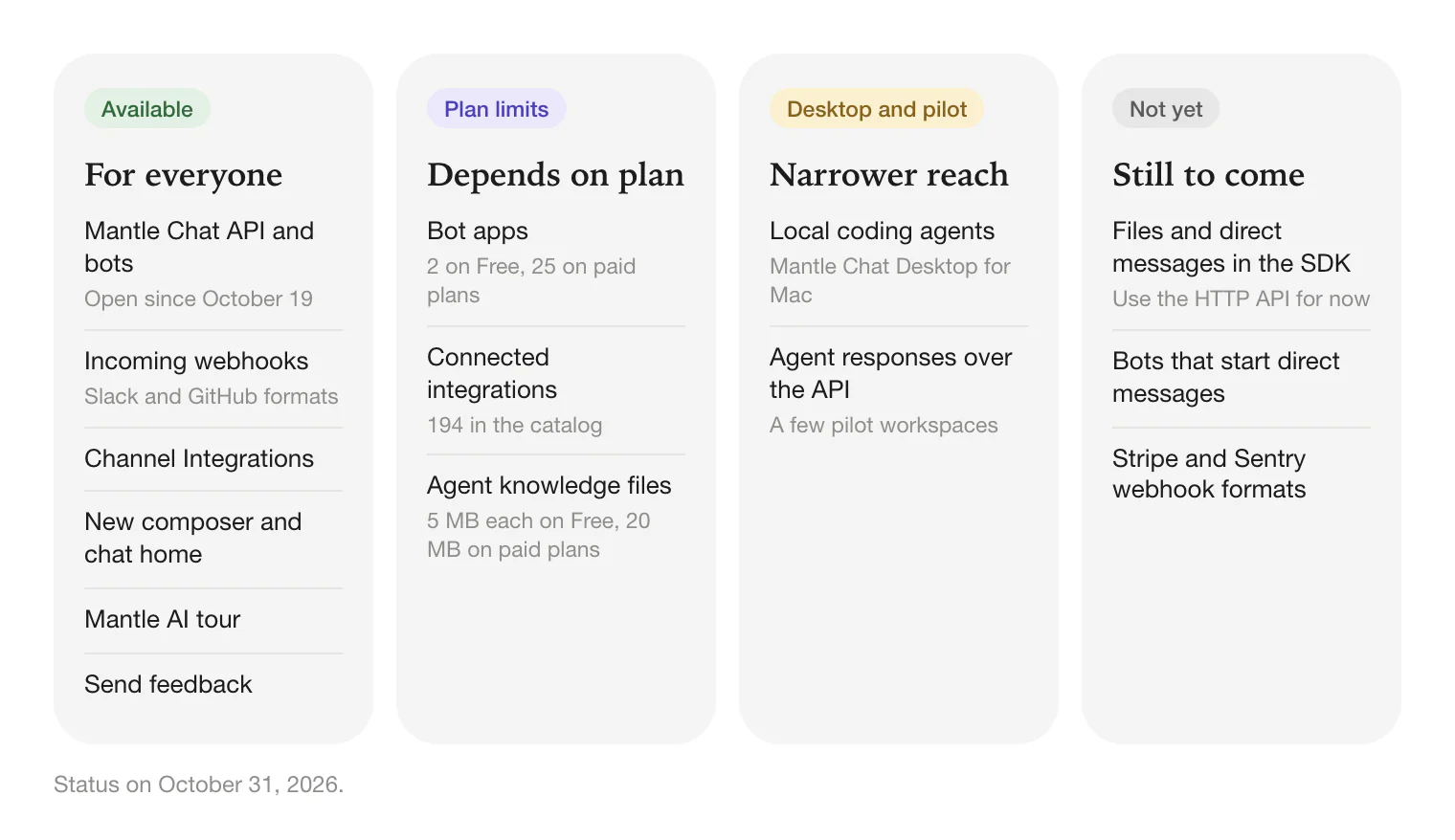
Let's walk through it.
Build Your Own Bots
In September, the Mantle Chat API was an allowlisted private beta. On October 19, it opened to every workspace, and with it came bots: apps your team builds that post into channels under their own name and icon.
A bot can:
- Post into its channels, including replies in a thread, under its own name and icon with an APP badge.
- Hear messages: only the ones that mention it, every message in its channels, or nothing at all. Messages arrive at your server as signed events.
- Answer slash commands that people pick from the composer's
/menu, up to 25 per app. - Add buttons to its posts, up to five per post, and hear which one someone clicked.
- Edit and delete its own posts, and attach files.
- Reply to direct messages that people send it. Bots cannot start a direct message.
A Checklist Instead of a Manual
Bots are created on the organization's Developer page in Settings, under Apps. Organization owners and admins create the app with a name, an icon, and a description. Then a five-step checklist walks through the rest: declare commands if you want them, install the app in a workspace (its token is shown once), add the URL where it should receive events, send a test event, and add it to a channel. Workspace owners and admins install apps in their workspaces.
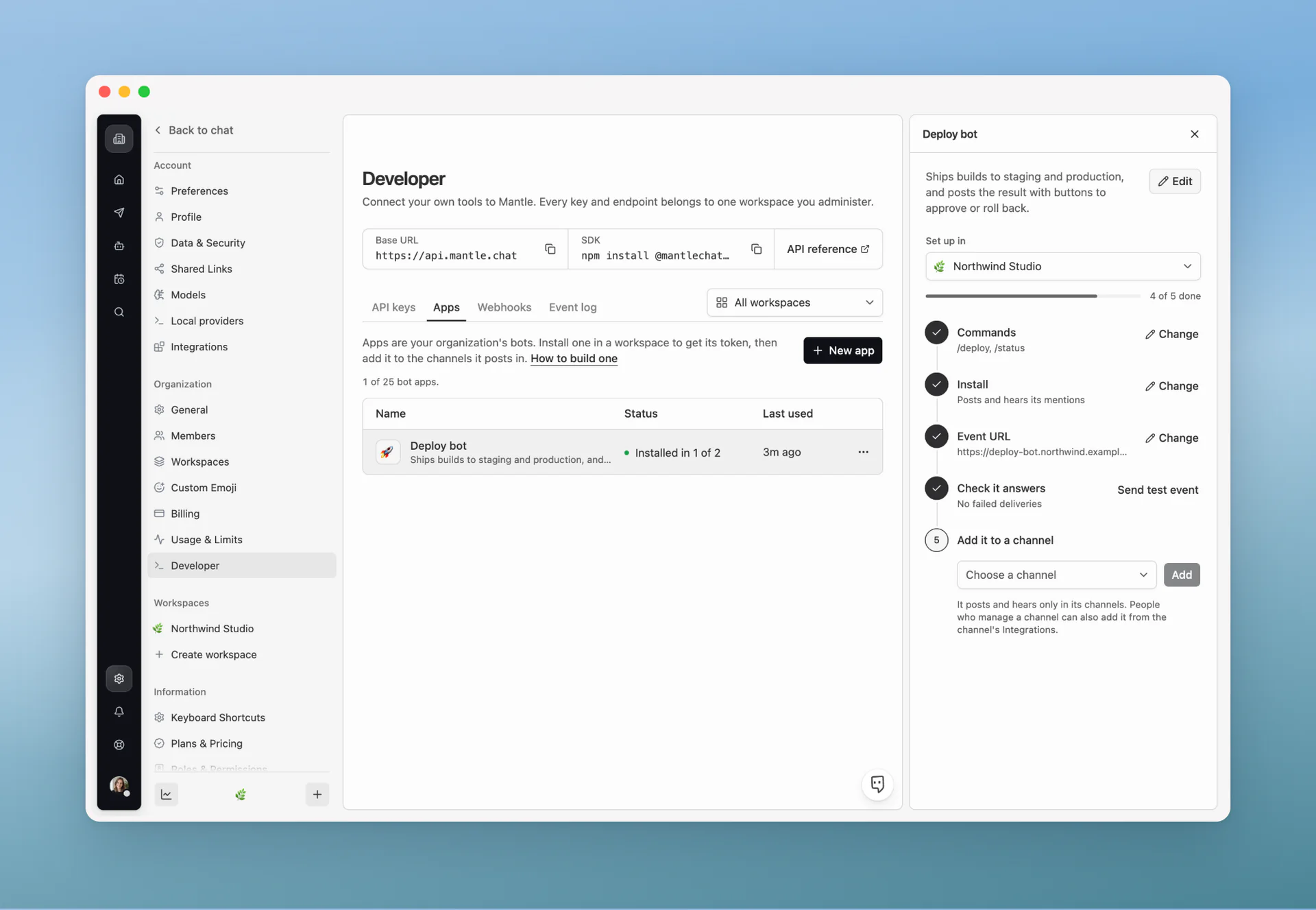
Finished steps fold away, and you can change scopes later without issuing a new token. People who manage a channel can also add an installed bot from the channel's Integrations panel.
A few limits keep bots well behaved. A Free organization can create two bot apps, and paid plans can create 25. Your server should answer an event within 10 seconds. Failed deliveries are retried, and delivery pauses after an hour of failures. If apps post more than 30 messages a minute in one channel, their posts stop reaching other bots in that channel for 10 minutes, which prevents two bots from answering each other in a loop. Messages from people always reach bots.
The API, the Reference, and the SDK
The same Developer page holds scoped API keys for the rest of the API, each shown once and limited to one workspace you administer. With a key, you can read Agents and Tasks, propose and apply changes to an Agent, start and cancel Task runs, and receive a signed webhook when a run starts, completes, or fails.
Two resources make this easier to build with:
- API reference: docs.mantle.chat/api-reference covers authentication, pagination, errors, limits, webhook signatures, and every endpoint.
- Build a bot guide: docs.mantle.chat/integrations/bots walks through a bot from the first post to buttons and commands.
The TypeScript SDK is now published on npm as @mantlechat/sdk, and the Developer page shows the install line. Version 0.1.0 covers posting, editing, buttons, commands, and events. Files and direct messages work through the HTTP API for now.
One part of the API is still a pilot: asking a saved Agent for a response over the API is enabled for a few workspaces only.
We use the same API ourselves. Since October 22, the feedback you send from the app reaches our support channel through an ordinary bot built on the public bot API.
Everything That Posts Into a Channel, in One Place
Channels collect updates from many places: Linear issues, Notion pages, Stripe payments, deploy scripts, and now bots. Until October, each of those was set up somewhere different. Now every channel has one list.
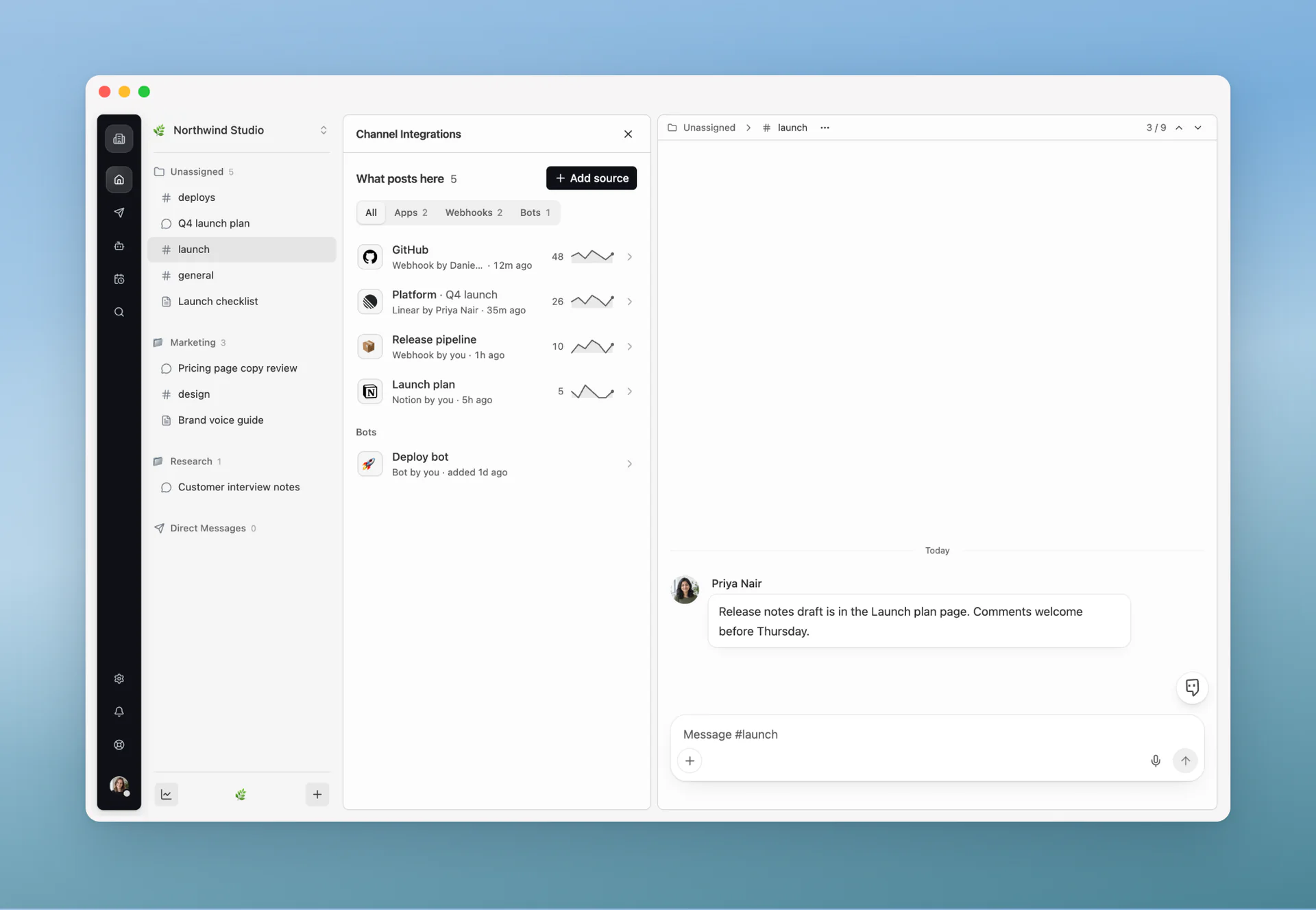
Open a channel's ··· menu and choose Integrations. Under What posts here, you can see every source with who added it, when it last posted, and a small chart of its posts over the last seven days. Filter by apps, webhooks, or bots, or open one source to choose which events it posts, remove it from the channel, or, for a webhook, rename it, change its icon, or rotate its URL. If the person who added a source leaves the workspace, it shows as Paused instead of quietly going silent.
Add source connects Linear, Stripe, or Notion, adds a bot, or creates an incoming webhook. The channel's creator and workspace owners and admins can manage this list.
Incoming Webhooks
An incoming webhook is a secret URL that posts into one channel. Anything that can send an HTTP request can use it: a deploy script, a monitoring tool, a GitHub Action, or a no-code automation.
What's included:
- Simple posts: Send JSON with a
textfield. Add athread_keyto keep related updates, such as one deployment's progress, in a single thread. - Slack format: Tools that already post to Slack can use the webhook's Slack URL. Slack's message format is accepted,
:emoji:names become emoji, and@hereor@channelarrive as plain text without notifying anyone. - GitHub format: Point a GitHub repository's webhook at the GitHub URL to post pushes, pull requests, reviews, issues, comments, releases, and finished workflow runs. Each pull request and issue gets its own thread, and GitHub's Redeliver does not post twice.
- Copy-ready setup: After you create a webhook, Mantle Chat shows the URL once, with examples for cURL, GitHub Actions, and HTTP tools. The incoming webhooks guide has the details.
A workspace can have up to 25 incoming webhooks, and each one can post up to 30 messages a minute. Other services' own webhook formats, such as Stripe's or Sentry's, are not accepted yet.
We also fixed Linear subscriptions that could post the same event twice when a channel followed both a Linear team and one of its projects. Subscribing a channel to a team or project it already follows now says so instead of creating a duplicate.
194 Integrations for Agents and Tasks
The integrations catalog for Agents and Tasks now lists 194 apps, from productivity and project management to CRM, marketing, finance, HR, analytics, support, and developer tools. Each person connects their own account in Settings → Integrations, and how many integrations you can connect at the same time depends on your plan. We have not tried every app with every kind of account yet, so if one behaves unexpectedly, please tell us.
Three details make connecting smoother:
- Clearer Google permissions: Before you connect Gmail, a dialog explains what Mantle Chat does with the data and links to the Google section of our privacy policy. Since October 17, new Gmail, Google Calendar, Drive, Docs, and Sheets connections no longer stop at Google's unverified-app screen.
- Connect without losing your work: Connecting an app from the Agent or Task builder now opens in a pop-up, so an unsaved Agent or Task stays where you left it.
- Phones: On a phone, Settings → Integrations shows the list or one integration at a time instead of squeezing both onto the screen.
Connections also work in the other direction. Mantle Chat's MCP server, which lets apps such as Claude or Cursor work with your workspace, now asks you to approve deletions, workspace access changes, and channel posts with an Approve or Cancel card in that app. A request expires after 10 minutes, and canceling changes nothing. Saved Agents called through the MCP server can only use read-only tools. Apps that cannot show approval cards cannot run those actions.
Agents Read Their Files
When you give an Agent knowledge files, such as a style guide, a price list, or an onboarding checklist, it used to search them and work from excerpts. Now, when the files fit, the Agent receives their complete text with each message, its own files first. Files that are too large are still searched for the relevant passages.
What counts as "fits" depends on the model: up to about 16,000 tokens, or a fifth of the model's context window if that is smaller. Full text works with models from OpenAI, Anthropic, Google, and DeepSeek. Other models still get excerpts.
Answers that used knowledge now show a Knowledge marker, such as "2 files provided", that opens to show each file and whether its full text or excerpts were used. When you upload files to an Agent, each one says Ready to use once it can be read. An Agent can have up to 10 files and 25 MB in total, with up to 5 MB per file on Free and 20 MB on paid plans.
A New Composer and a Chat Home You Can Arrange
The composer is where most work in Mantle Chat starts, so we redesigned it.
The left side now has one + button, Add files and more. It opens files and photos, image creation, mentions, emoji, web search, your connections, and Rewrite draft with Fix spelling, Paraphrase, and Summarize. Anything you switch on appears as a small pill you can remove. On the right are the reasoning-effort control, the model picker, the microphone, and Send. Which options appear depends on the conversation, the model, and your plan.
Attachments now show their type and size before you send them, and a failed upload offers Retry instead of disappearing. Hosted models start at their lowest reasoning level, and the misleading "Default" tag on those levels is gone.
The empty new-chat screen became a small home for your workspace. Under the greeting, compact chips show today's Agent runs, who is Online now, the workspace's Sources, your Usage, and any Live huddles while one is running.
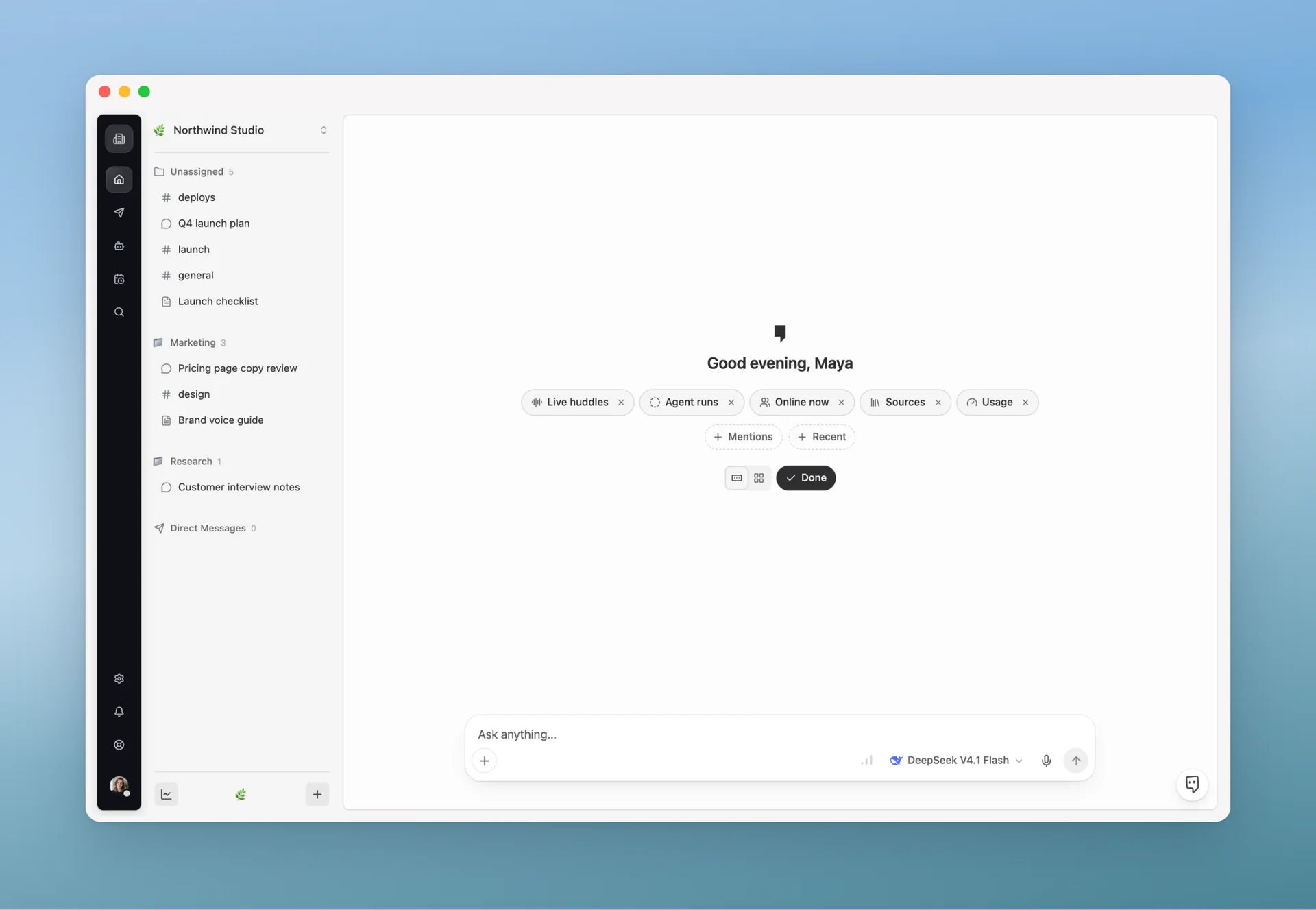
Each chip opens a short preview. Switch between chips and larger cards, and select Customize to reorder them by dragging or with the arrow keys, hide the ones you do not need, or add Mentions and Recent. Your layout is saved to your account.
A few smaller fixes landed in the same area:
- Stop really stops: Selecting Stop now ends generation on the server, and the partial answer is saved as stopped. The saved text can run slightly past what was on screen when you clicked.
- Email addresses stay text: An
@inside an email address no longer turns into a mention. - Menus stay open: Opening a menu while the composer was still loading no longer closes it again.
Mantle AI Shows You Around
Mantle AI, which arrived across the workspace in September, now helps people who are new to Mantle Chat find their way. Open Mantle AI from Home or an empty new chat and choose What can I do in Mantle Chat?
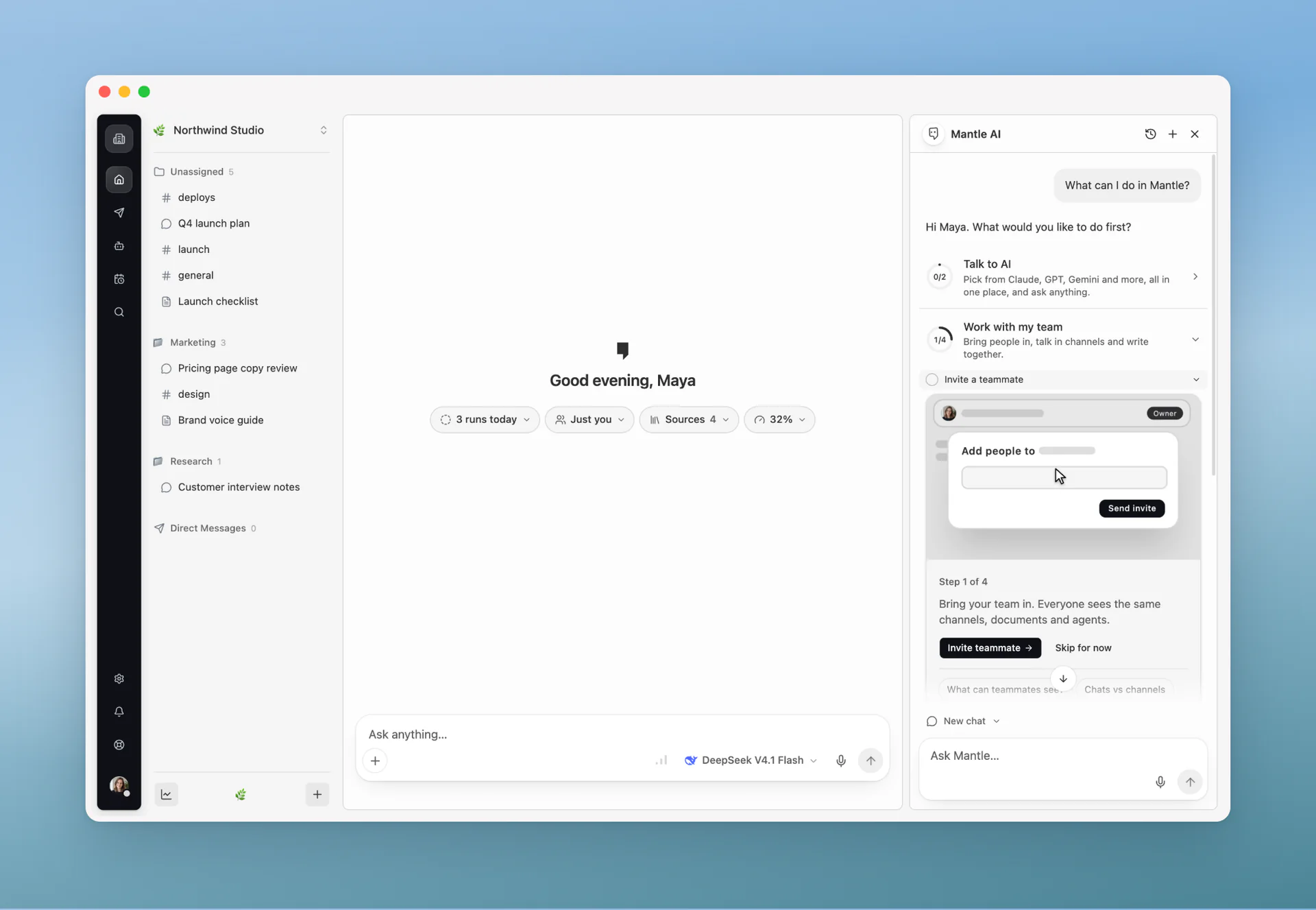
The tour offers three goals, each with a progress ring:
- Talk to AI: Ask a model a question and choose a model.
- Work with my team: Invite a teammate, create a channel, reply in a thread, and create a Canvas.
- Let AI work for me: Create an Agent, connect a tool, and create a Task.
Each step has a short animated picture, suggested questions, and a link to the guide. When you start a step, Mantle AI highlights where to click in the real app. Skip for now moves on without doing anything. The tour is part of the app rather than a model's answer, so following it does not use AI credits.
We also moved the Mantle AI launcher so it no longer covers the Send button in a thread panel.
Local Coding Agents in Mantle Chat Desktop
Since August, Mantle Chat Desktop for Mac can connect coding agents you already use: Codex, Claude Code, Cursor, Grok CLI, and OpenCode. In October, these chats gained the controls you need to let an agent work on real code:
- A folder for each chat: Choose the project folder an agent works in. The chat shows the folder and its current git branch.
- An access level for each chat: Choose Read only, Ask first, Edit automatically, or Full access. Ask first is the default.
- Readable changes and approvals: Replies show diffs and command output in a readable form, and approval requests show the exact command or change.
- Review and undo: A Changes pane shows what an agent edited, and each reply can be undone or redone.
- Worktrees: Give a chat its own git worktree, then commit, push, or create a pull request from Mantle Chat.
- Plan mode, sign-in, and limits: Plan mode for Claude Code, Codex, and OpenCode, prompts to install or sign in to a tool, and the Codex and Claude usage limits in view.
These controls arrived in Mantle Chat Desktop 0.1.25 on October 17. A chat's folder and access settings are stored on that Mac. Mantle Chat does not run your repository's git hooks when it reads or changes your code.
Tell Us What's Wrong, With a Screenshot
You can now send feedback without leaving the app. Select Send feedback in the left rail, choose Send feedback… under Support and Docs in the account menu, or use Help → Send Feedback… in Mantle Chat Desktop.
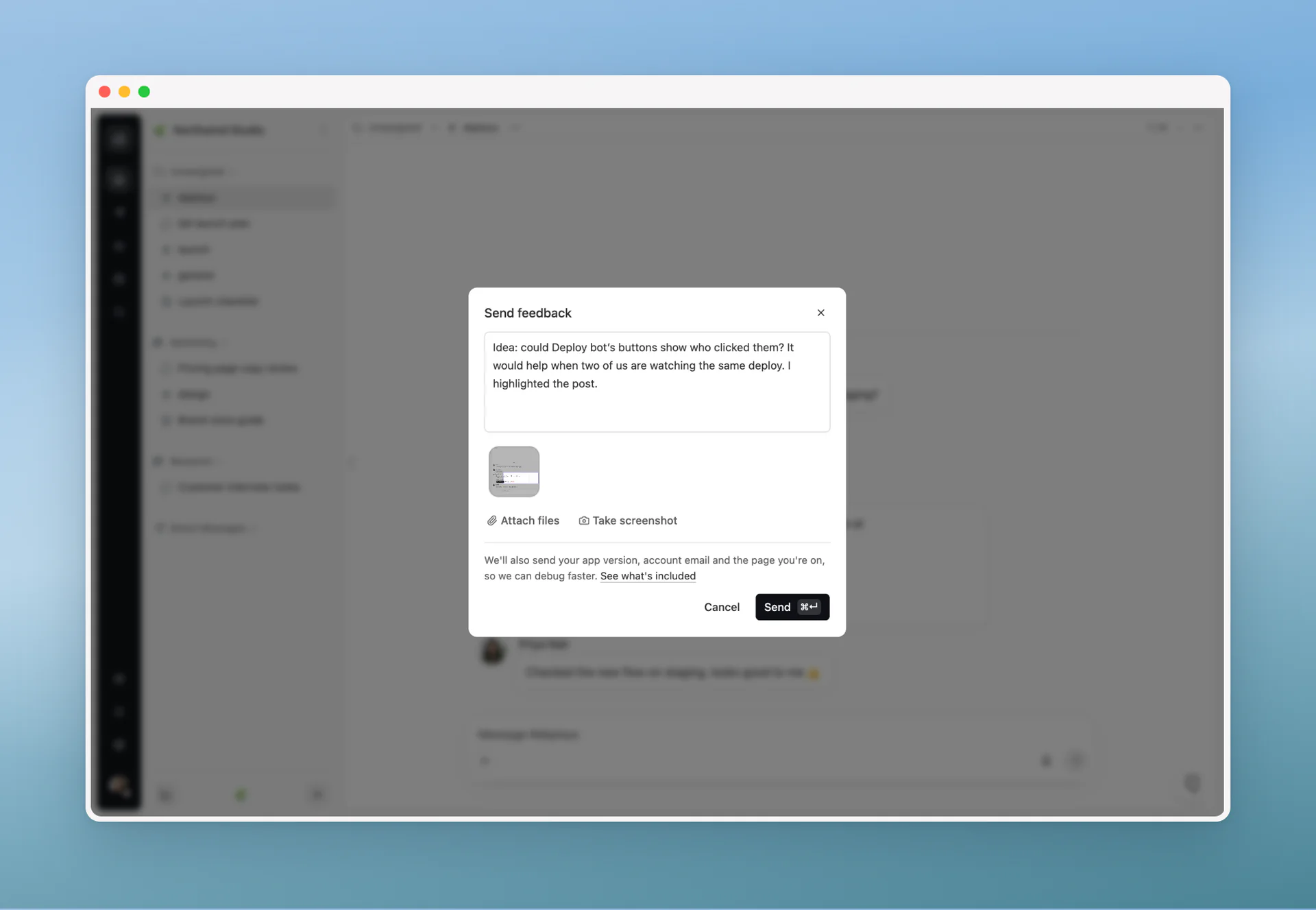
Describe what happened, attach up to five files, or select Take screenshot and drag to highlight what is wrong. See what's included shows the technical details sent with your report before you send it. You get a ticket number in the app and a confirmation email with the same number, so you can refer to it later.
Reliability, Privacy, and Sign-In
Some of October's most important work is hard to see in a screenshot:
- Deleted messages leave Activity too: When a channel post, direct message, chat message, or thread reply is deleted, its notifications disappear from everyone's Activity and unread counts update. The same applies when an edit or a regenerated AI reply replaces later messages.
- Deletions show up right away: Everyone with the channel open sees "This message was deleted" without reloading.
- Thread reply edits stick: An edited thread reply keeps its new text after a reload.
- Clearer session endings: When your session ends, Mantle Chat takes you to sign-in with a message saying so, instead of leaving a workspace where nothing loads. A brief outage at our sign-in provider no longer signs you out, and returning to the app rechecks your session without the header flickering.
- Google sign-in with email verification: If Google sign-in asks you to verify your email, a Verify your email screen now takes the six-digit code and continues to your invitation instead of failing.
- Promotion codes: Monthly plans, including the 14-day Plus trial, now accept a promotion code at checkout.
- Moving chats between workspaces: Moving a chat now keeps every part of each message, including generated images, or stops without changing anything.
- A clearer privacy policy: The privacy policy now explains who we are, the legal bases we rely on, how we use Google data, and how to contact a data protection authority. Old
/legallinks redirect to the current Terms and Privacy pages. - Desktop updates: Mantle Chat Desktop now checks for updates every hour, and the Huddle panel no longer slides under the window's title bar.
- Accessibility: External links in the site footer now tell screen readers where they go, such as "Help Center (opens in new tab)".
AI at Work: Expert Interviews
October also started something new outside the app. AI at Work is a series of expert interviews: people from different professions answer the same questions about what has changed in their work since AI arrived, where the hard part moved, and how far they trust it.
- Part 1 (October 14): six experts.
- Part 2 (October 29): six more experts, from product marketing and sales to HR and app building.
The series has its own site, Shift, where you can read the published parts, see the topics we are collecting answers for, take part as an expert, or subscribe to new parts by email. Part 3 is in the works.
We also refreshed the interactive demo on the Mantle Chat homepage so it matches the app as it looks today, including a Canvas scene where a teammate's comment and an AI suggestion improve a sentence together.
Thank You
Thank you to everyone who built a first bot, connected a webhook, tried an Agent with real files, rearranged their chat home, or sent us feedback with a screenshot. Many of October's fixes started with one of those reports.
October's work was less about one big launch and more about connections: between your tools and your channels, between Agents and the files they need, and between new teammates and the parts of Mantle Chat they have not found yet. We would love to see what you connect next.
Connect With Us
Have questions or feedback? We'd love to hear from you:
- LinkedIn: linkedin.com/company/mantlechat
- Product Hunt: producthunt.com/products/mantle
- Peerlist: peerlist.io/katja/project/mantle-chat
- X/Twitter: x.com/mantlechat
- Instagram: instagram.com/mantle.chat
- YouTube: youtube.com/@mantlechat
- Discord: discord.gg/STzq94kdDC
Let's build the future of AI collaboration together. 🚀
— The Mantle Chat Team